Guide: Instance Creation: Difference between revisions
Jump to navigation
Jump to search
No edit summary |
No edit summary |
||
| (4 intermediate revisions by 2 users not shown) | |||
| Line 1: | Line 1: | ||
=Illustrated Instance Creation = | =Illustrated Instance Creation = | ||
<gallery mode="packed | <gallery mode="packed" heights="400"> | ||
File:Launch instance 001.png|'''Step 1:''' Log in to the bwCloud-OS Dashboard. | File:Launch instance 001.png|'''Step 1:''' Log in to the bwCloud-OS [https://portal.bw-cloud.org/ Dashboard]. | ||
File:Launch instance 002.png|'''Step 2:''' Go to Project → Compute → Instances. | File:Launch instance 002.png|'''Step 2:''' Go to Project → Compute → Instances. Press "Launch Instance" then. | ||
File:Launch instance 003.png|'''Step 3:''' Specify the desired number of VMs. | File:Launch instance 003.png|'''Step 3:''' Specify the desired number of VMs. | ||
File:Launch instance 004.png|'''Step 4:''' Assign a name. If you create multiple VMs at once, they will be numbered consecutively according to the name you assign them. | File:Launch instance 004.png|'''Step 4:''' Assign a name. If you create multiple VMs at once, they will be numbered consecutively according to the name you assign them. | ||
File:Launch instance 005.png|'''Step 5:''' Here you can see the image overview. | File:Launch instance 005.png|'''Step 5:''' Here you can see the image overview. | ||
File:Launch instance 006.png|'''Step 6:''' Choose an image (e.g., Debian | File:Launch instance 006.png|'''Step 6:''' Choose an image (e.g., Debian 9). | ||
File:Launch instance 007.png|'''Step 7:''' The selected image should appear in the upper area. | File:Launch instance 007.png|'''Step 7:''' The selected image should appear in the upper area. | ||
File:Launch instance 008.png|'''Step 8:''' Choose a flavor. | File:Launch instance 008.png|'''Step 8:''' Choose a flavor. | ||
File:Launch instance 009.png|'''Step 9:''' The selected flavor should appear in the upper area. | File:Launch instance 009.png|'''Step 9:''' The selected flavor should appear in the upper area. | ||
File:Launch instance 010.png|'''Step 10:''' Choose the appropriate network(s). | File:Launch instance 010.png|'''Step 10:''' Choose the appropriate network(s). | ||
File:Launch instance 011.png|'''Step 11:''' You can select | File:Launch instance 011.png|'''Step 11:''' You can optionally select security groups here. Security settings can also be modified after the instance has been created. | ||
File:Launch instance 012.png|'''Step 12:''' Select your SSH key. | File:Launch instance 012.png|'''Step 12:''' Select your SSH key. | ||
File:Launch instance 013.png|'''Step 13:''' Press "Launch Instance". | File:Launch instance 013.png|'''Step 13:''' Press "Launch Instance". | ||
File:Launch instance 015.png|'''Step 14:''' After a few seconds, | File:Launch instance 015.png|'''Step 14:''' After a few seconds, the instance will start. You can then log in. | ||
</gallery> | </gallery> | ||
Latest revision as of 18:36, 10 November 2025
Illustrated Instance Creation
-
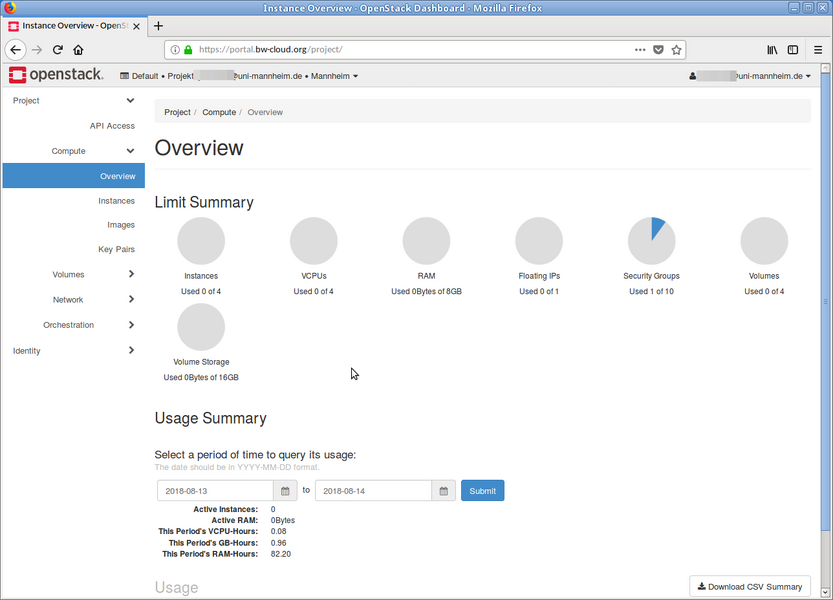 Step 1: Log in to the bwCloud-OS Dashboard.
 -
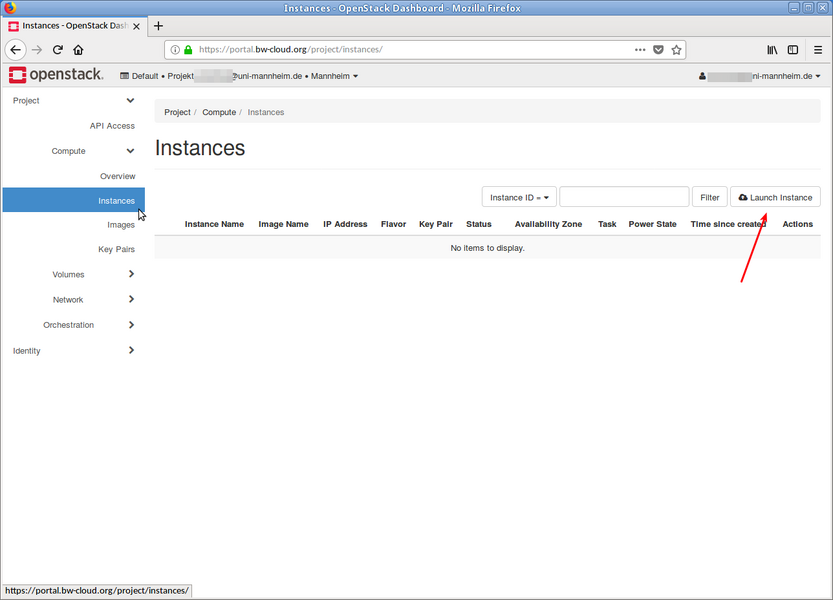 Step 2: Go to Project → Compute → Instances. Press "Launch Instance" then.
 -
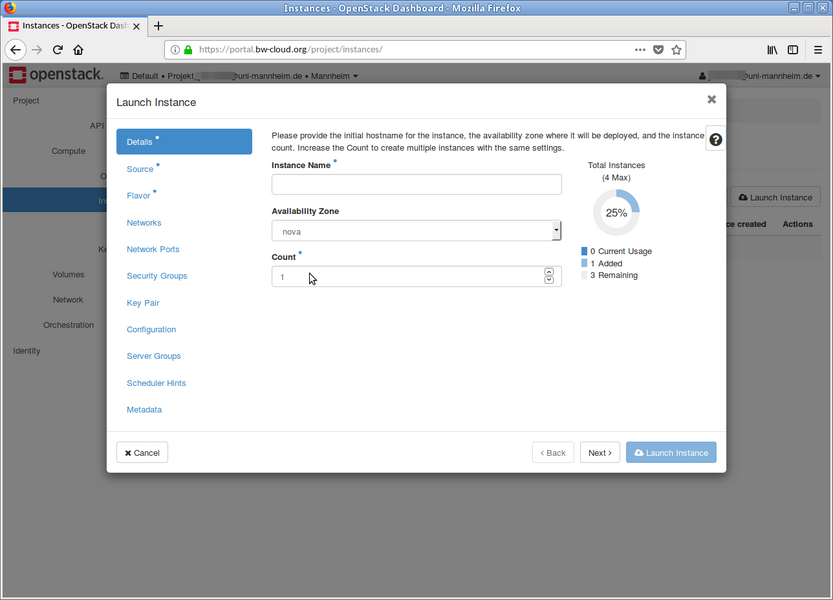 Step 3: Specify the desired number of VMs.
 -
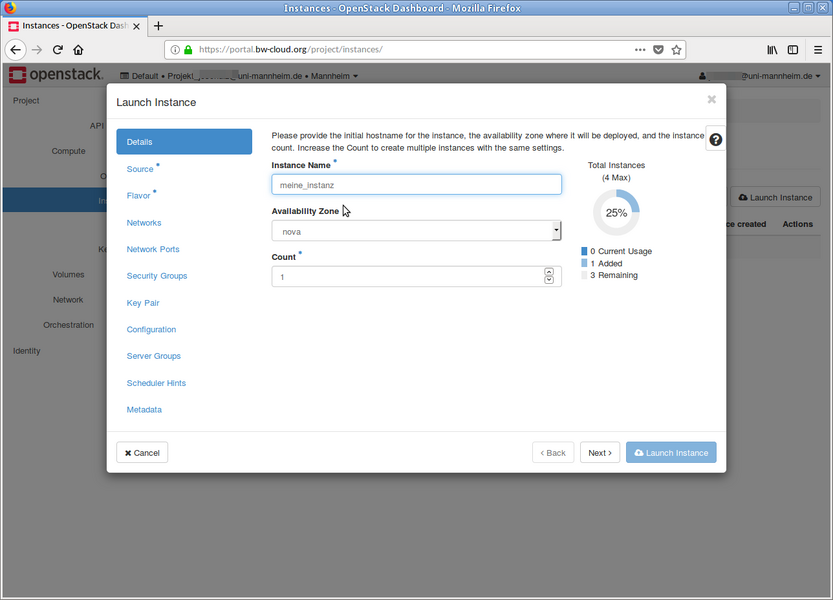 Step 4: Assign a name. If you create multiple VMs at once, they will be numbered consecutively according to the name you assign them.
 -
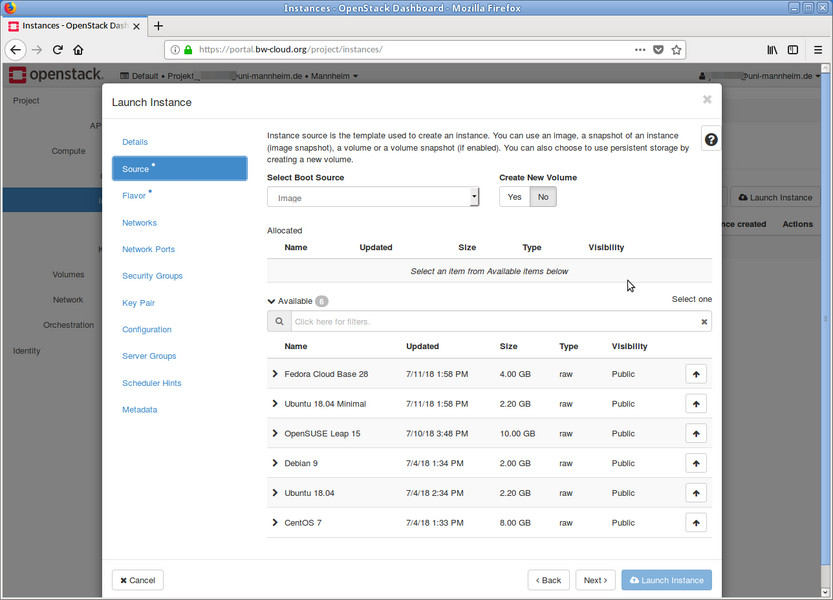 Step 5: Here you can see the image overview.
 -
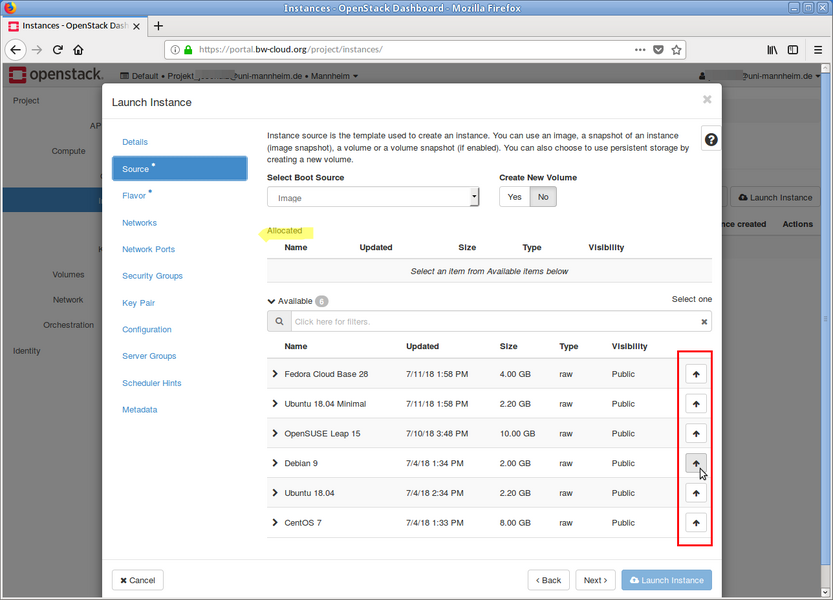 Step 6: Choose an image (e.g., Debian 9).
 -
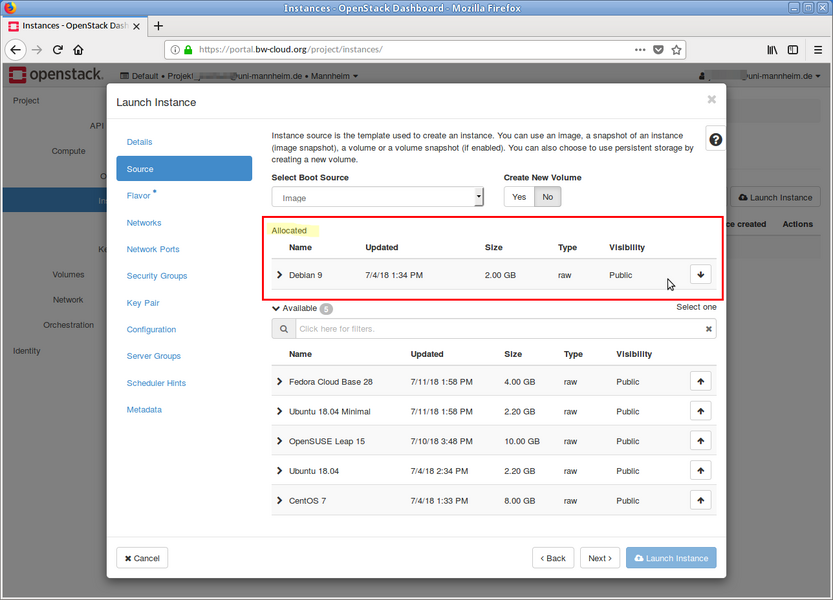 Step 7: The selected image should appear in the upper area.
 -
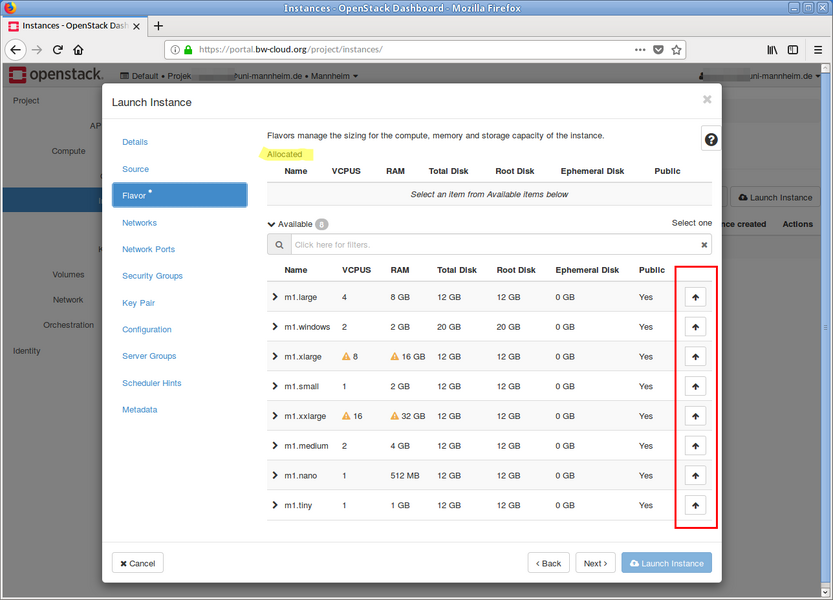 Step 8: Choose a flavor.
 -
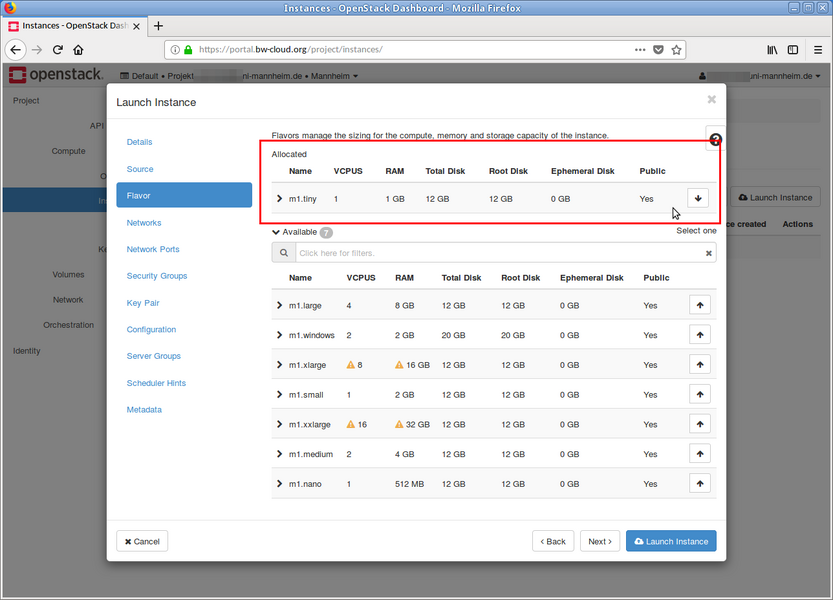 Step 9: The selected flavor should appear in the upper area.
 -
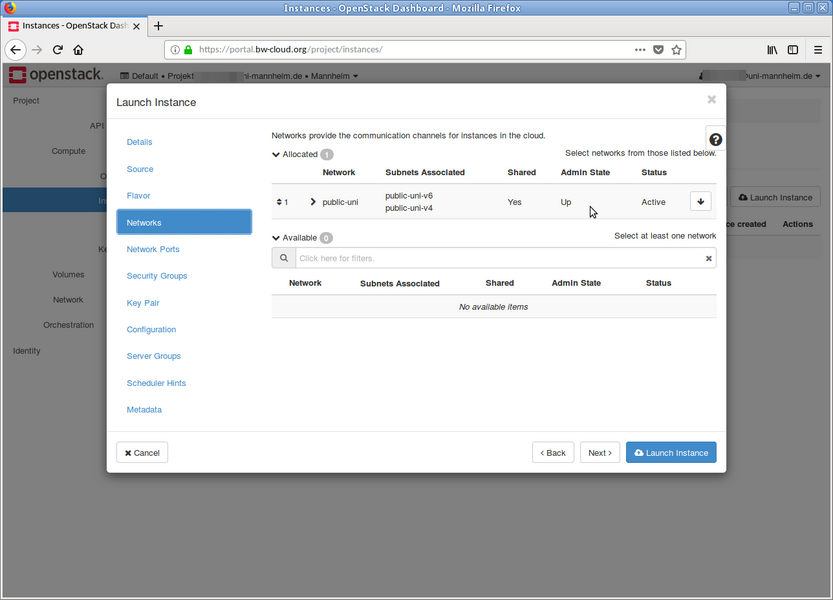 Step 10: Choose the appropriate network(s).
 -
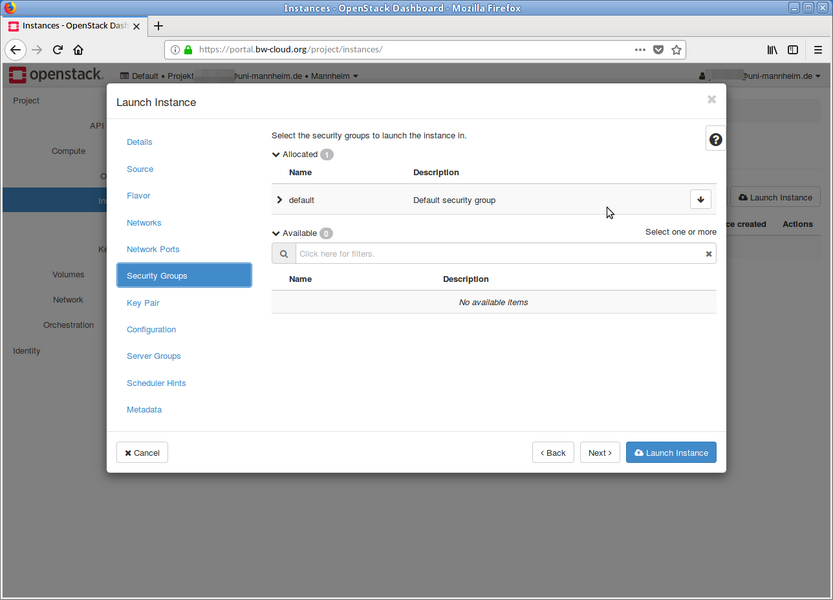 Step 11: You can optionally select security groups here. Security settings can also be modified after the instance has been created.
 -
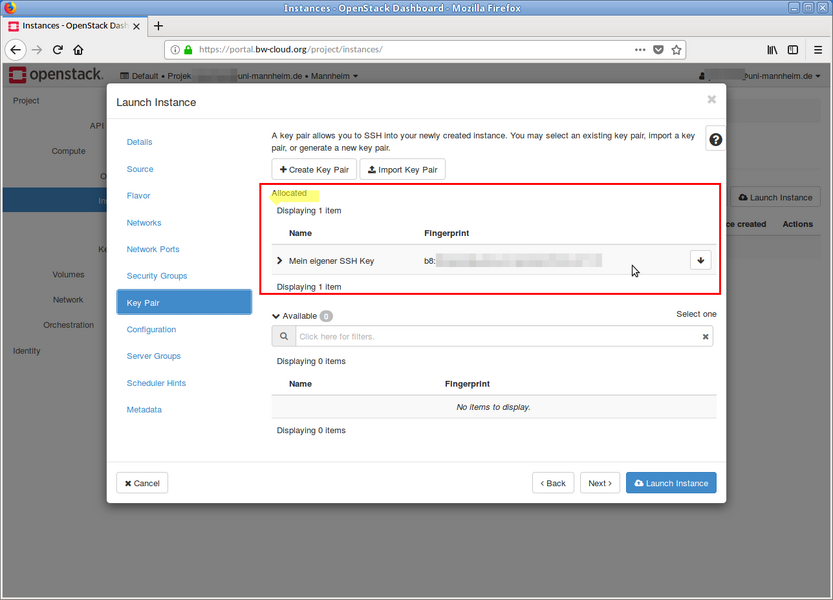 Step 12: Select your SSH key.
 -
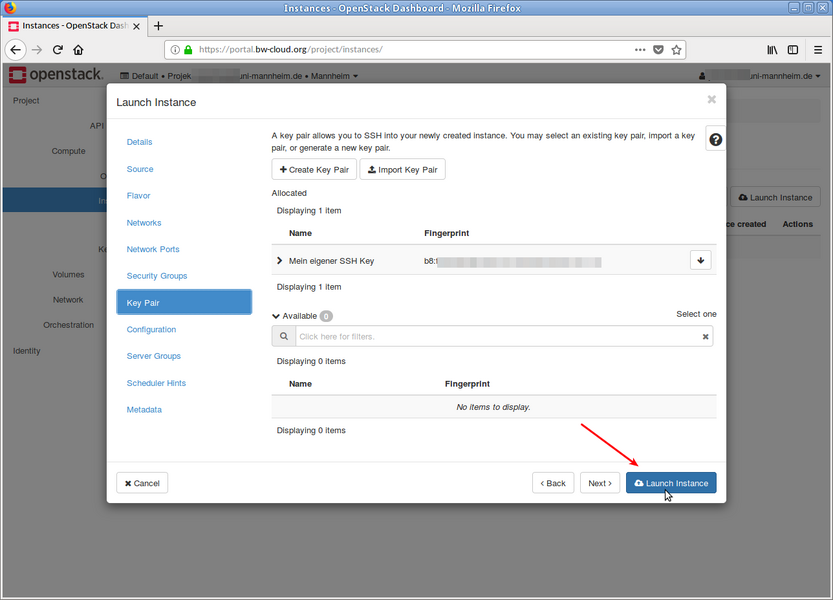 Step 13: Press "Launch Instance".
 -
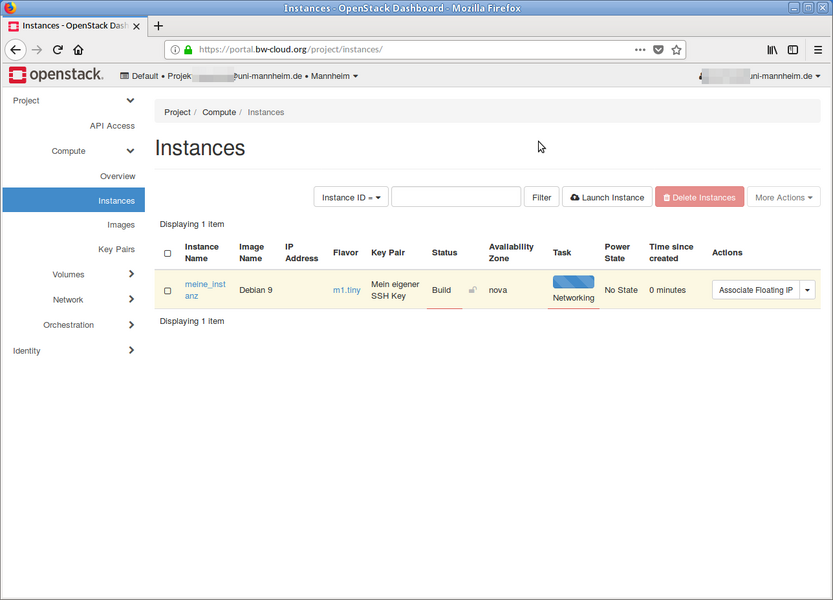 Step 14: After a few seconds, the instance will start. You can then log in.


